Powershell Basics
Declaring variables
$location = Get-Location
In this example we have declared the variable and stored current location into it.
$location | Get-Member
This displays type, method and properties of the variable
Arrays
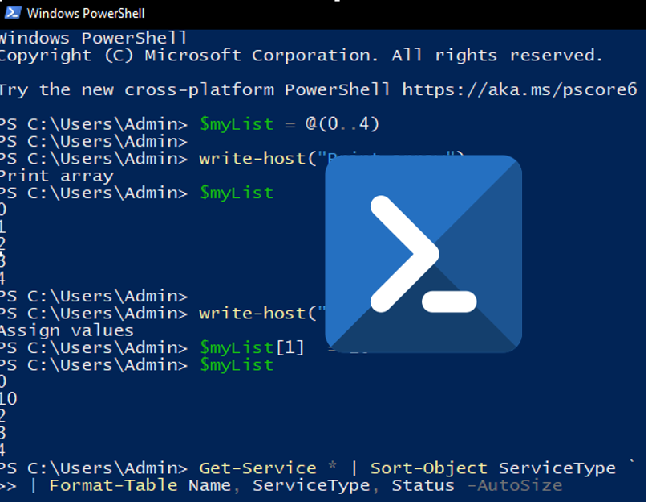
$myList = @(0..4)
write-host("Print array")
$myList
write-host("Assign values")
$myList[1]  = 10
$myList
Hashtables
$hash = @{ ID = 1; Shape = "Square"; Color = "Blue"}
write-host("Print all hashtable keys")
$hash.keys
write-host("Print all hashtable values")
$hash.values
write-host("Get ID")
$hash["ID"]
write-host("Get Shape")
$hash.Number
write-host("print Size")
$hash.Count
write-host("Add key-value")
$hash["Updated"] = "Now"
write-host("Add key-value")
$hash.Add("Created","Now")
write-host("print Size")
$hash.Count
write-host("Remove key-value")
$hash.Remove("Updated")
write-host("print Size")
$hash.Count
write-host("sort by key")
$hash.GetEnumerator() | Sort-Object -Property key
Sort-Object and Format-Table
Get-Service * | Sort-Object ServiceType `
| Format-Table Name, ServiceType, Status -AutoSize

Get-Service | Format-List
For loop
$array = @("item1", "item2", "item3")
foreach ($element in $array) { $element }
for($i = 0; $i -lt $array.length; $i++){ $array[$i] }
If statement and Operator
$x = 10
if($x -le 20) {
  write-host("This is if statement")
}
While loop
$myList = 5.6, 4.5, 3.3, 13.2, 4.0, 34.33, 34.0, 45.45, 99.993, 11123
write-host("using while Loop")
$i = 0
while($i -lt 4) {
   $myList[$i];
   $i++
}
Switch statement
switch(3){
   1 {"One"}
   2 {"Two"}
   3 {"Three"}
   4 {"Four"}
   3 {"Three Again"}
}
Working with files & folders
New-Item D:\temp\test\test.txt
Set-Content D:\temp\test\test.txt 'Welcome!!'
Get-Content D:\temp\test\test.txt
Add-Content D:\temp\test\test.txt 'Hello!'
Clear-Content D:\temp\test\test.txt
New-Item D:\temp\test\test.xml -ItemType File
Set-Content D:\temp\test\test.xml '<title>Welcome to TutorialsPoint</title>'
New-Item D:\temp\test\test.csv -ItemType File
Set-Content D:\temp\test\test.csv 'Mahesh,Suresh,Ramesh'
New-Item -Path 'D:\temp\Test Folder' -ItemType Directory
Copy-Item 'D:\temp\Test Folder' -Destination 'D:\temp\Test Folder1'
Copy-Item 'D:\temp\Test Folder\Test File.txt' 'D:\temp\Test Folder1\Test File1.txt'
Copy-Item -Filter *.txt -Path 'D:\temp\Test Folder' -Recurse -Destination 'D:\temp\Test Folder1'
Get-ChildItem -Name
Remove-Item 'D:\temp\Test Folder' -Recurse
Move-Item D:\temp\Test D:\temp\Test1
Rename-Item D:\temp\Test\test.txt test1.txt
(Get-Content D:\temp\test\test.txt).length
Test-Path D:\temp\test
Compare files
Compare-Object -ReferenceObject $(Get-Content D:\temp\test\test.txt) -DifferenceObject $(Get-Content D:\temp\test\test1.txt) -IncludeEqual
Searching through obeject
Get-Service | Where-Object {$_.Status -eq "Stopped"}
Get-Process | Where-Object {$_.ProcessName -Match "^p.*"}
ForEach
1000,2000,3000 | ForEach-Object -Process {$_/1000}
"Microsoft.PowerShell.Core", "Microsoft.PowerShell.Host" | ForEach-Object {$_.Split(".")}
Sleep
Start-Sleep -s 15
Start-Sleep -m 500
Input & Output
$choice = Read-Host "Please put your choice"
Write-Host (2,4,6,8,10,12) -Separator ", -> " -ForegroundColor DarkGreen -BackgroundColor White
Select & Sort object
Get-Process | Select-Object -Property ProcessName, Id, WS -Last 5<\code>
Get-Process | Sort-Object -Property WS | Select-Object -Last 5<\code>
Invoke expression
$Command = 'Get-Process'
$Command
Get-Process
Invoke-Expression $Command
Invoke-Item "D:\Temp\test.txt"
SSH connection
Install-Module -Name Posh-SSH
Import-Module Posh-SSH
$session = New-SSHSession -ComputerName remote_host -Credential (Get-Credential)
Invoke-SSHCommand -SessionId $session.SessionId -Command "ls -l"
Remove-SSHSession -SessionId $session.SessionId
Powershell for Networks
Get-NetAdapter
Set-NetIPAddress -InterfaceAlias "Ethernet" -IPAddress "192.168.1.10" -PrefixLength 24
Set-DnsClientServerAddress -InterfaceAlias "Ethernet" -ServerAddresses ("8.8.8.8", "8.8.4.4")
Test-Connection -ComputerName google.com
Test-NetConnection -ComputerName google.com -TraceRoute
Test-NetConnection -ComputerName example.com -Port 80
Get-NetFirewallRule
Enter-PSSession -ComputerName remote_computer_name
Get-NetTCPConnection
Get-NetIPConfiguration
Get-NetWiFiNetwork
Get-NetRoute
Scripting
You can run a PowerShell script from the PowerShell console or command prompt. Use the & (call) operator followed by the script’s file path
Set-ExecutionPolicy RemoteSigned
& "C:\path\to\myscript.ps1"
Set-PSDebug -Trace 2
Custom Object
$customObject = New-Object PSObject -Property @{
    Name = "John"
    Age = 30
}

# Access properties
$customObject.Name  # Accesses the Name property (John)
Creating Excel Workbook
# Create a COM object (e.g., Excel)
$excel = New-Object -ComObject Excel.Application

# Perform actions with the COM object
$workbook = $excel.Workbooks.Add()
Working with Fuctions
function Multiply-Numbers {
    param (
        [int]$A,
        [int]$B = 2
    )

    $Result = $A * $B
    return $Result
}

$result = Multiply-Numbers -A 5 -B 3
Write-Host "Result: $result"


function Get-EvenNumber {
    [CmdletBinding()]
    param (
        [Parameter(ValueFromPipeline = $true)]
        [int]$Number
    )

    process {
        if ($Number % 2 -eq 0) {
            Write-Output $Number
        }
    }
}
Working with JSON
- Writing JSON Data to a File:
To create or overwrite a JSON file with data from a PowerShell object, you can use the ConvertTo-Json cmdlet to convert the object to JSON format and then use Set-Content to write it to a file. Here’s an example:
# Create a PowerShell object
$data = @{
    Name = "John"
    Age = 30
    City = "New York"
}

# Convert the object to JSON format
$jsonData = $data | ConvertTo-Json

# Write the JSON data to a file
$jsonData | Set-Content -Path 'C:\path\to\your\output.json'
- Formatting JSON Output:
You can format JSON output for better readability using the -Depth parameter with the ConvertTo-Json cmdlet. The -Depth parameter specifies the maximum depth of the object hierarchy to be included in the JSON output.
For example, to format JSON output with an indentation of 4 spaces:
$jsonData = $data | ConvertTo-Json -Depth 10
$jsonData | Set-Content -Path 'C:\path\to\your\formatted_output.json'
- Reading JSON Data from a File:
You can use the Get-Content cmdlet to read the contents of a JSON file and then use the ConvertFrom-Json cmdlet to parse the JSON data into a PowerShell object. Here’s an example:
# Read the JSON file contents
$jsonContent = Get-Content -Path 'C:\path\to\your\file.json' -Raw

# Parse the JSON data into a PowerShell object
$object = $jsonContent | ConvertFrom-Json
Working with API
- Handle POST Requests:
For API endpoints that require sending data, you can make POST requests. You’ll need to specify the request body as JSON, XML, or other supported formats.
# Define the API endpoint URL
$apiUrl = "https://api.example.com/data"

# Define the request data
$requestData = @{
    "key" = "value"
}

$headers = @{
    "Api-Key" = "your_api_key_here"
}

# Convert the data to JSON
$requestJson = $requestData | ConvertTo-Json

# Make a POST request
$response = Invoke-RestMethod -Uri $apiUrl -Method Post -Headers $headers -Body $requestJson -ContentType "application/json"

# Convert the JSON response to a PowerShell object
$apiData = $response | ConvertFrom-Json

# Access properties of the object
$apiData.propertyName
- Handle Query Parameters:
You can include query parameters in your API requests using the -Query parameter of Invoke-RestMethod. For example:
$queryParams = @{
    "param1" = "value1"
    "param2" = "value2"
}

$response = Invoke-RestMethod -Uri $apiUrl -Method Get -Query $queryParams