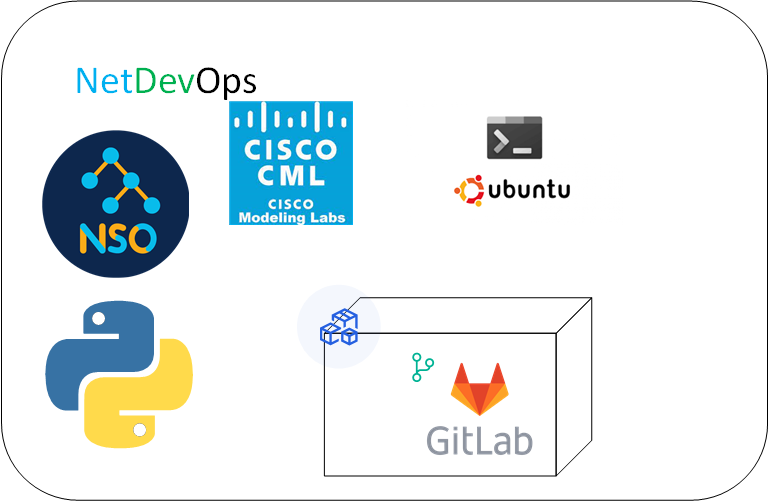
Setup Development Server
DevBox on Ubuntu
Configure WSL2
As most of us are on windows machine, a quick way to setup a DevBox is on Windows Subsystem for Linux (WSL). My preferred choice of linux distribution for this would be Ubuntu 22.04.
- Start with below commands to enabled Window optional features and restart th computer. Make sure virtualization is enabled in BIOS. For e.g. I have Gigabyte motherboard and enable SVM mode for AMD-v.
Enable-WindowsOptionalFeature -Online -FeatureName Microsoft-Windows-Subsystem-Linux
Enable-WindowsOptionalFeature -Online -FeatureName VirtualMachinePlatform
- Then update WSL to version 2. To do it, go to https://docs.microsoft.com/windows/wsl/wsl2-kernel, download wsl_update_x64.msi, and install it. Make WSL2 a default architecture for new Linux distros with below command.
wsl --set-default-version 2
- Now install Ubuntu with below command.
wsl --install -d ubuntu
- List all installed distributions in WSL. Use -v option to get the state of the distribution.
wsl -l -v
- Run the Ubuntu distribution.
wsl -d Ubuntu
You can terminate the distribution using -t option.
- Check the Ubuntu version
lsb-release -a
- Update the package list in Ubuntu
sudo apt update
Install Cisco NSO
- Install Java
sudo apt install openjdk-17-jdk -y
Check Java version java –version
- Downloaded fre trial of Cisco NSO from Cisco official website. In my case it’s nso-6.1-freetrial.linux.x86_64.signed.bin. This is for linux operating system. Unpack the package to get nso-6.1.linux.x86_64.installer.bin.
sh nso-6.1-freetrial.linux.x86_64.signed.bin
- Make a folder in $HOME directory and run the installer.
sh nso-6.1.linux.x86_64.installer.bin --local-install ~/nso-6.1
- Now download the NEDs from Cisco official site. In my case, I have downloaded ncs-6.1-cisco-ios-6.92.8-freetrial.signed.bin and ncs-6.1-cisco-iosxr-7.49-freetrial.signed.bin. Unpack both the files and move all .tar.gz files to ned folder.
sh ncs-6.1-cisco-ios-6.92.8-freetrial.signed.bin
sh ncs-6.1-cisco-iosxr-7.49-freetrial.signed.bin
mv *.tar.gz ~/nso-6.1/packages/neds/
- Goto ned folder and extract all tar file.
tar -zxvf ncs-6.1-cisco-iosxr-7.49.tar.gz
tar -zxvf ncs-6.1-cisco-ios-6.92.8.tar.gz
- We need to source ncsrc. This is shell script for bash that will setup your PATH and other environment variables for NSO. Post this you will be able to run ncs command directly from bash.
source $HOME/nso-6.1/ncsrc
- Now create an NSO instance and provide the directory name where you want your NSO instance to be placed. Directory will be created automatically. In my NSO instance below, I have only included IOS and IOSXR neds.
ncs-setup --package ~/nso-6.1/packages/neds/cisco-ios-cli-6.92 --package ~/nso-6.1/packages/neds/cisco-iosxr-cli-7.49 --dest nso-instance
- Go to the NSO instance directory and start NSO instance.
cd ~\nso-6.1\nso-instance
ncs
- Check the NCS status.
ncs --status | grep status
Install Python and create Virtual environment
- Install Python3 and Pip3
sudo apt install python3
sudo apt install python3.10-venv
sudo apt install pip
- Create and move to a project folder. Enable virtual environment and activate.
python3 -m venv .venv
source .venv/bin/activate
- Clone below repo in the project folder.
git clone https://github.com/CiscoDevNet/virlutils.git
- Install all packages as mentioned in requirement.txt
sudo pip install -r ./virlutils/requirements.txt
Check all installed packages with command pip freeze.
- Setup the VIRL utilities as below
sudo python3 setup.py install
- Create .virlrc file in $HOME directory and enter below lines into it. We will run CML in Cisco DevNet Sandbox and below are the credentials for those. This mostly remain same, but change it if you see different.
VIRL_HOST=10.10.20.161
VIRL_USERNAME=developer
VIRL_PASSWORD=C1sco12345
CML_VERIFY_CERT=False
Reserve a CML sandbox and sync/operate with CML command line
Note: Though it’s not neccessary to spin up a CML, test environment can even run on Eve-Ng.
-
Login to https://devnetsandbox.cisco.com/RM/Diagram/Index/685f774a-a5d6-4df5-a324-3774217d0e6b?diagramType=Topology and reserve a lab
-
Once lab is ready, connect through VPN. Credentials and steps to install AnyConnect will be available in the lab document/process.
-
Check the list of existing labs and note down the ID
cml ls
- Stop and wipe the current lab
cml down --id 414a4c8f-3ead-4a0e-8cd9-4dd8eb4a1b6f
cml wipe lab --id 414a4c8f-3ead-4a0e-8cd9-4dd8eb4a1b6f
- Search existing labs available in repository and then run one of that lab
cml search
Note down the lab name to run, then use below command to provision and run that lab.
cml up --provision virlfiles/2-ios-router
You need to modify the CML topology to add an unmanaged switch and connect all routers to it. Then connect that unmamanged switch to External Connector (configured as bridge).
- Check the nodes
cml ls
cml use -id 29fbcce2-d36d-4246-a4ce-f5836f00c35e
cml nodes
- Jump into your NSO instance using the ncs_cli command. This command takes several options - we’ll use -C to specify we’d like a “Cisco style” command line interface (the default is a Juniper style), and -u admin to login as the “admin” user. Make sure –noaaa option is included otherwise many commands will not be visible.
ncs_cli -u admin -C --noaaa
Enter config mode with config command
- We will setup a new authgroup called “labadmin”. This group will use a default username/password combination of cisco / cisco for devices, with a “secondary” (ie ‘enable’) password also of cisco. These commands will set this up.
devices authgroups group labadmin
default-map remote-name cisco
default-map remote-password cisco
default-map remote-secondary-password cisco
Don’t forget to commit the configuration with commit command
- In the $HOME directory, create nso-inventory.cfg file in below format and mention the node details as mentioned in lab. If IP addresses are not available in cml nodes output, then we can login to console of the devices using cml console router1 command and can even do changes.
devices device router1
 address 10.10.20.174
 authgroup labadmin
 ssh host-key-verification none
 device-type cli ned-id cisco-ios-cli-6.92
 device-type cli protocol ssh
 state admin-state unlocked
 !
!
devices device router2
 address 10.10.20.175
 authgroup labadmin
 ssh host-key-verification none
 device-type cli ned-id cisco-ios-cli-6.92
 device-type cli protocol ssh
 state admin-state unlocked
 !
!
- Now read the file created in above step and stage it for commit.
load merge nso-inventory.cfg
You can now see the device list using command show devices list
- Make NSO communicate with these devices
devices connect
Note: Sometimes while connecting to device we get error “info Failed to authenticate towards device router1: SSH key exchange failed”. Follow as shown in below steps to make this work.
admin@ncs# show running-config devices global-settings  ssh-algorithms  public-key | details
devices global-settings ssh-algorithms public-key [ ssh-ed25519 ecdsa-sha2-nistp256 ecdsa-sha2-nistp384 ecdsa-sha2-nistp521 rsa-sha2-512 rsa-sha2-256 ]
admin@ncs# conf
Entering configuration mode terminal
admin@ncs(config)# devices global-settings ssh-algorithms public-key [ ssh-ed25519 ecdsa-sha2-nistp256 ecdsa-sha2-nistp384 ecdsa-sha2-nistp521 rsa-sha2-512 rsa-sha2-256 ssh-rsa ssh-dss  ]
admin@ncs(config)# commit dry-run
cli {
    local-node {
        data  devices {
                  global-settings {
                      ssh-algorithms {
             -            public-key [ ssh-ed25519 ecdsa-sha2-nistp256 ecdsa-sha2-nistp384 ecdsa-sha2-nistp521 rsa-sha2-512 rsa-sha2-256 ];
             +            public-key [ ssh-ed25519 ecdsa-sha2-nistp256 ecdsa-sha2-nistp384 ecdsa-sha2-nistp521 rsa-sha2-512 rsa-sha2-256 ssh-rsa ssh-dss ];
                      }
                  }
              }
    }
}
admin@ncs(config)# commit
Commit complete.
devices device-group IOS-DEVICES check-sync devices device-group IOS-DEVICES sync-from
Install Docker and create container for GitLab and Jenkins
- Install docker and start the service
  sudo apt-get update
  sudo apt-get install ca-certificates curl gnupg
  sudo install -m 0755 -d /etc/apt/keyrings
  curl -fsSL https://download.docker.com/linux/ubuntu/gpg | sudo gpg --dearmor -o /etc/apt/keyrings/docker.gpg
  sudo chmod a+r /etc/apt/keyrings/docker.gpg

  echo   "deb [arch="$(dpkg --print-architecture)" signed-by=/etc/apt/keyrings/docker.gpg] https://download.docker.com/linux/ubuntu "$(. /etc/os-release && echo "$VERSION_CODENAME")" stable" |   sudo tee /etc/apt/sources.list.d/docker.list > /dev/null

  sudo apt-get update
  sudo apt-get install docker-ce docker-ce-cli containerd.io docker-buildx-plugin docker-compose-plugin
  sudo /etc/init.d/docker start
- Install GitLab container
sudo docker run --detach \
                --hostname gitlab.example.com
                --publish 1443:443 \
                --publish 4080:80 \
                --publish 1001:22 \
                --name gitlab \
                --restart always \
                --volume gitlab_config:/etc/gitlab \
                --volume gitlab_logs:/var/log/gitlab \
                --volume gitlab_data:/var/opt/gitlab \
                --shm-size 2gb \
                gitlab/gitlab-ee:latest
GitLab then can be access by opening the URL http://localhost:4080 in browser.
Get the initial root password using below command
sudo docker exec -it gitlab cat /etc/gitlab/initial_root_password
- Install GitLab runner
docker run -d --name gitlab-runner --restart always \
  -v /srv/gitlab-runner/config:/etc/gitlab-runner \
  -v /var/run/docker.sock:/var/run/docker.sock \
  gitlab/gitlab-runner:latest
- Register GitLab runner with GitLab server
docker run --rm -it -v gitlab-runner-config:/etc/gitlab-runner gitlab/gitlab-runner:latest register
| Parameters | Values |
|---|---|
| GitLab instance URL | “docker inspect gitlab | grep IPAddress” |
| Registration token | Project > CI/CD > Runners, then three dots beside ‘New Project runner’ |
| Description | My Runner |
| Tags for the runner | Leave empty |
| Maintenance note | Leav empty |
| Executor | docker |
| docker image | ruby:2.7 |
- Since our GitLab server does not have a proper host name registered in DNS, the runner will have difficulty finding it. We will do a workaround to fix that. Edit the configuration file “sudo nano /srv/gitlab-runner/config/config.toml” as follows:
Add “/var/run/docker.sock:/var/run/docker.sock” At the end of the file, add the extra_hosts variable, make sure to replace with your IP address from previous steps.
concurrent = 1
check_interval = 0
shutdown_timeout = 0

[session_server]
  session_timeout = 1800

[[runners]]
  name = "My Runner"
  url = "http://172.17.0.2"
  id = 2
  token = "-G2kj_HByKuHm7sAW6JP"
  token_obtained_at = 2023-08-19T11:10:17Z
  token_expires_at = 0001-01-01T00:00:00Z
  executor = "docker"
  [runners.cache]
    MaxUploadedArchiveSize = 0
  [runners.docker]
    tls_verify = false
    image = "ruby:2.7"
    privileged = false
    disable_entrypoint_overwrite = false
    oom_kill_disable = false
    disable_cache = false
    volumes = ["/var/run/docker.sock:/var/run/docker.sock", "/cache"]
    shm_size = 0
    extra_hosts=["gitlab.example.com:172.17.0.2"]
-
Then perform docker stop gitlab-runner and docker start gitlab-runner
-
Install Jenkins container
docker run -d \
    --name jenkins \
    -p 9080:8080 \
    -p 50000:50000 \
    --restart always \
    -v jenkins_home:/var/jenkins_home \
    jenkins/jenkins:lts-jdk11
- Check status of both containers.
sudo docker ps
- To get the intial admin password for Jenkins, we have to get inside the container to see the content of initialAdminPassword. As we open the URL http://localhost:9080 in browser first time we login, we need to put admin password mentioned initialAdminPassword file.
sudo docker exec -it gitlab /bin/bash
cat /var/jenkins_home/secrets/initialAdminPassword
Note: Sometimes, intial password is stored under different path. Get the container ID from sudo docker ps, then search the logs for the container as **sudo docker logs
Install and Configure Ansible in Ubuntu
- Run below commands on Ubuntu bash shell to install Ansible. This is well documented in https://docs.ansible.com/ansible/latest/installation_guide/installation_distros.html#installing-ansible-on-ubuntu
sudo apt update
sudo apt install software-properties-common
sudo add-apt-repository --yes --update ppa:ansible/ansible
sudo apt install ansible
- Install cisco.ios modules by running command ansible-galaxy collection cisco.ios. Once installed, modules can be seen under path ~/.ansible/collections/ansible_collections/cisco/ios/plugins/modules. In our example we will modify the ACL on a IOS router, and for that we will use ios_acls.py module.