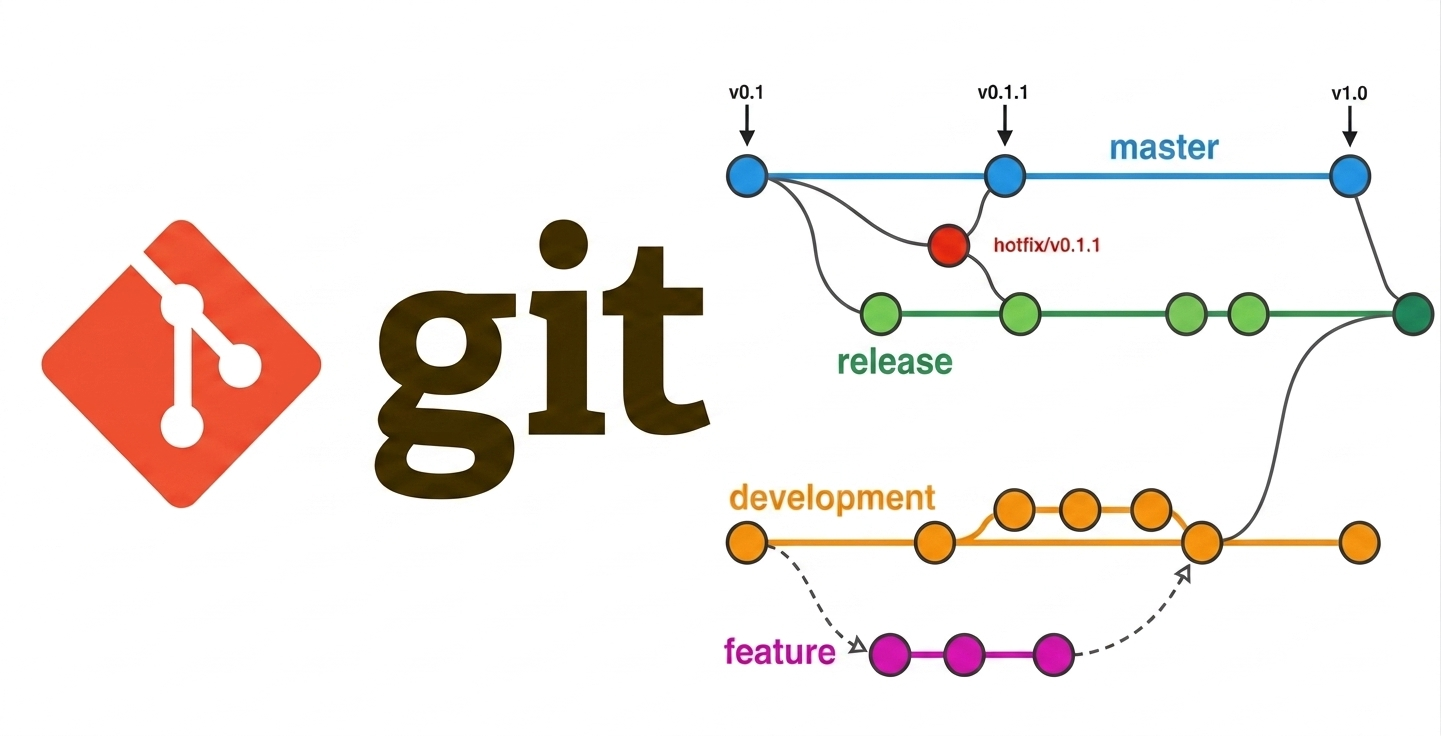
Git Branching and Production Workflow Notes
Git Production Workflow Notes
These are practical Git notes based on the branch, merge, rebase, recovery, and push scenarios practiced in an example repository.
The focus is not just “which command works”, but:
When does this situation happen in real work?
How do I inspect it?
What is the safe command?
What should I avoid?
1. The Core Model
Git becomes easier when you think in pointers.
commit = snapshot of files plus parent commit link
branch = movable name pointing to a commit
HEAD   = what is currently checked out
Normally:
HEAD -> main -> 9af9152
Detached HEAD:
HEAD -> 9af9152
Remote-tracking branch:
origin/main
Important: origin/main is not the branch on GitHub itself. It is your local cached reference showing where your repo last saw GitHub’s main. It updates after:
git fetch origin
2. Daily Inspection Commands
Use these before doing anything risky:
git status -sb
git branch -vv
git log --oneline --decorate --graph --all -16
Meaning of common status lines:
## main...origin/main
Local main tracks origin/main and is in sync.
## feature...origin/feature [ahead 1]
Local branch has one commit not pushed.
## feature...origin/feature [behind 1]
Remote has one commit you have not integrated.
## feature...origin/feature [ahead 1, behind 1]
Local and remote have diverged. Both sides have unique commits.
Useful detail commands:
git show <commit>
git show --stat <commit>
git show --name-only <commit>
git diff <commit>^ <commit>
git ls-tree --name-only HEAD
What These Detail Commands Mean
Assume this history:
* c3ecfe1 (HEAD -> feature/demo) ir: add first two lines
* f8b0cc9 (main) Revert "wrong: committed on main"
* a985a58 wrong: committed on main
Use:
git show c3ecfe1
when you want the full story of one commit:
commit hash
author
date
commit message
file patch
Real production use:
You are reviewing a suspicious commit and want to know exactly what it changed.
Use:
git show --stat c3ecfe1
when you want a summary, not the full patch:
ir-demo.txt | 2 ++
1 file changed, 2 insertions(+)
Real production use:
You want a quick impact summary before opening the full diff.
Use:
git show --name-only c3ecfe1
when you only want the touched file names:
ir-demo.txt
Real production use:
You are checking whether a commit touched code, docs, config, migrations, or tests.
Use:
git diff c3ecfe1^ c3ecfe1
when you want to compare a commit with its parent.
Meaning:
c3ecfe1^  = parent of c3ecfe1
c3ecfe1   = the commit itself
So this command means:
Show the exact patch introduced by c3ecfe1.
This is similar to:
git show --patch c3ecfe1
Real production use:
You are debugging a regression and want to inspect the exact patch introduced by one commit.
Use:
git ls-tree --name-only HEAD
when you want to see files tracked in the current commit.
This is different from:
ls
because ls shows the working directory, including untracked files. git ls-tree shows what Git has recorded in a commit.
Real production use:
You want to know whether a file is actually tracked in the current commit or just lying untracked in your working tree.
3. Starting a Feature Branch
Real-life condition:
You are about to start new work and want it isolated from main.
Safe flow:
git switch main
git fetch origin
git pull --ff-only
git switch -c feature/my-work
Why:
You start from latest main.
Your work stays isolated.
You can push/open a PR later.
Push and set upstream:
git push -u origin feature/my-work
After -u, plain commands know the upstream:
git push
git pull
git status -sb
Production rule:
Use feature branches for almost all real work.
Avoid committing directly to main unless your team explicitly allows it.
4. Committed on the Wrong Branch
Real-life condition:
You meant to work on a feature branch, but accidentally committed on main.
The commit is local and not pushed.
Example bad state:
* abc1234 (HEAD -> main) accidental work
* 9af9152 (origin/main) previous main
Goal:
Move the accidental commit to a feature branch.
Return main to origin/main.
Safe recovery:
git switch -c feature/wrong-branch-fix
git switch main
git reset --hard origin/main
Why it works:
The new feature branch preserves the accidental commit.
Then main can be moved back safely.
Avoid:
git reset --hard origin/main
before creating a branch or otherwise saving the commit. You may need reflog to recover.
Production rule:
If the mistaken commit is not pushed, move it with a branch and reset main.
If it is already pushed to shared main, use revert instead of reset.
If the Wrong Commit Was Already Pushed to Shared Main
Real production scenario:
You accidentally committed a debug change directly on main and pushed it.
Other developers may already have pulled it.
CI may already have built it.
The commit is now part of shared history.
Bad pushed history:
* abc1234 (main, origin/main) debug logging accidentally committed
* 9af9152 previous good commit
Do not fix this with:
git reset --hard 9af9152
git push --force
Why not:
That rewrites shared main.
Anyone who pulled abc1234 now has a commit that disappeared from origin/main.
Their next pull/push can become confusing or dangerous.
Shared branches should usually move forward, not backward.
Production-safe fix:
git switch main
git fetch origin
git pull --ff-only
git revert abc1234
git push
After revert:
* def5678 (main, origin/main) Revert "debug logging accidentally committed"
* abc1234 debug logging accidentally committed
* 9af9152 previous good commit
The bad commit remains visible, but its file changes are undone by a new commit.
Why this is safe:
History is not rewritten.
Everyone can pull normally.
Audit history remains honest.
CI/CD sees a normal forward-moving fix.
Use reset instead only when:
The commit is local only, or the team explicitly agrees to rewrite the branch.
5. Merge Conflict
Real-life condition:
Two branches changed the same line or nearby lines.
You merge one branch into another and Git cannot decide the final content.
Command:
git merge other-branch
Conflict markers:
<<<<<<< HEAD
current branch version
=======
incoming branch version
>>>>>>> other-branch
Meaning:
HEAD = current branch
other-branch = branch being merged in
Resolve:
nano conflicted-file
git add conflicted-file
git commit
Verify:
git status -sb
grep -n '<<<<<<<\|=======\|>>>>>>>' conflicted-file
Production rule:
Conflict resolution is a code decision, not just a Git decision.
Read both sides, understand intent, then produce the correct final file.
6. Fast-Forward Merge
Real-life condition:
You created a feature branch.
main did not move while you worked.
Now you merge the feature back.
Shape before:
A   main
 \
  B   feature
Merge:
git switch main
git merge feature
Result:
A -- B main, feature
No merge commit is created. Git only moves the main pointer forward.
Production rule:
Fast-forward is safe and clean when the target branch has not moved independently.
If you want to require this:
git merge --ff-only feature
How git merge --ff-only feature Saves You
Real production scenario:
You believe your feature branch is directly ahead of main.
You want main to move forward only if that belief is true.
You do not want Git to create an accidental merge commit.
Expected shape:
A   main
 \
  B   feature
Command:
git switch main
git merge --ff-only feature
Result:
A -- B main, feature
This is allowed because Git only needs to move the main pointer.
Now imagine main moved while you were working:
      C   main
     /
A ---
     \
      B   feature
If you run:
git merge feature
Git may create:
      C ---- M   main
     /      /
A ---      /
     \    /
      B
That merge commit may be valid, but it may also be unexpected.
If you run:
git merge --ff-only feature
Git refuses:
fatal: Not possible to fast-forward, aborting.
That refusal is useful. It tells you:
The branch shape is not what you expected.
Stop and inspect before deciding between merge, rebase, or squash.
Production use cases:
Release branches where accidental merge commits are not allowed.
Teams that require linear history.
Scripts that should fail safely instead of creating unexpected history.
Local practice when you want to prove a branch is directly ahead.
Decision after failure:
git log --oneline --decorate --graph --all -16
Then choose deliberately:
git rebase main
or:
git merge feature
7. Merge Commit Without Conflict
Real-life condition:
main changed and your feature branch also changed.
The file changes do not conflict.
Shape:
      C   main
     /
A ---
     \
      B   feature
Merge:
git switch main
git merge feature
Result:
      C ---- M   main
     /      /
A ---      /
     \    /
      B
No conflict, but a merge commit exists because the histories diverged.
Key rule:
Conflict is about file content.
Fast-forward is about branch shape.
Production rule:
Use merge commits when your team wants to preserve branch topology and show integration points.
Use rebase or squash when your team wants linear history.
What “Linear History” Means
Non-linear history with a merge commit:
      C ---- M   main
     /      /
A ---      /
     \    /
      B   feature
Linear history:
A -- C -- B' main
or, after squash:
A -- C -- S main
Where:
B' = feature commit replayed on top of main
S  = one new squash commit containing the whole feature
Rebase for Linear History
Real production scenario:
You have a personal feature branch with several commits.
main moved forward.
Your team wants the final branch to look like it was built on top of latest main.
Flow:
git switch feature
git fetch origin
git rebase origin/main
git switch main
git merge --ff-only feature
Before:
A --- C   main
 \
  B       feature
After rebase:
A --- C   main
       \
        B'  feature
After fast-forward merge:
A --- C --- B' main, feature
Why teams like this:
git log is easier to scan.
git bisect has a simpler path.
There are fewer "Merge branch..." commits.
Each commit can represent one logical step.
Tradeoff:
You lose the visual branch topology.
Commit hashes change during rebase.
You must be careful if the branch was already shared.
Squash for Linear History
Real production scenario:
Your feature branch has many noisy commits:
fix typo
try again
debug
address review
final fix
The team does not want all of those on main. They want one clean commit.
Local squash merge:
git switch main
git merge --squash feature
git commit -m "feature: implement customer export"
Before:
A --- C   main
 \
  B1 -- B2 -- B3 -- B4   feature
After squash:
A --- C --- S main
The feature branch commits still exist on the feature branch, but main gets one new commit S.
GitHub equivalent:
Use "Squash and merge" on the pull request.
When squash is useful:
Small feature where intermediate commits are not valuable.
PR review generated many noisy fixup commits.
Team wants one commit per PR or ticket.
When squash is less useful:
Large feature where individual commits are meaningful.
You want to preserve detailed development history.
Multiple commits should be independently revertible.
8. Rebase a Feature Branch Onto Updated Main
Real-life condition:
You created a feature branch from main.
Meanwhile, main moved forward.
Before opening or updating a PR, you want your feature branch based on latest main.
Before:
A --- B --- C   main
 \
  F             feature
Command:
git switch feature
git fetch origin
git rebase main
After:
A --- B --- C   main
             \
              F'   feature
Why hash changes:
Rebase creates a new commit because the parent changed.
Commit hash includes parent, content, message, and metadata.
Production rule:
Rebase local or personal feature branches freely.
Be careful rebasing branches other people are using.
Why Rebasing a Shared Branch Is Risky
Real production scenario:
Alice and Bob are both working on the same remote branch:
feature/payment-refactor
Initial shared history:
A -- B -- C origin/feature/payment-refactor
Both Alice and Bob have this branch locally:
A -- B -- C   Alice local
A -- B -- C   Bob local
Alice rebases the branch onto newer main:
A -- M1 -- M2   main
           \
            B' -- C'   Alice local
Then Alice pushes:
git push --force-with-lease
Remote now becomes:
A -- M1 -- M2 -- B' -- C' origin/feature/payment-refactor
But Bob still has:
A -- B -- C Bob local
From Bob’s point of view, the commits he based his work on disappeared from the remote branch and were replaced by B' and C'.
If Bob adds commit D:
A -- B -- C -- D Bob local
and tries to push, Git rejects or creates a messy situation. Bob now needs to repair his branch, often with:
git fetch origin
git rebase --onto origin/feature/payment-refactor C D
or a simpler but still careful workflow:
git fetch origin
git switch feature/payment-refactor
git reset --hard origin/feature/payment-refactor
but that second command discards Bob’s local commits unless he saves them first.
That is why the production rule exists:
Do not rebase and force-push a branch that other people are actively basing work on unless the team coordinates it.
Safe cases for rebase:
Your own local branch not pushed yet.
Your own PR branch where nobody else commits directly.
A team workflow where force-with-lease updates to PR branches are expected.
Risky cases for rebase:
main
release branches
shared integration branches
branches used by multiple developers
branches used by deployment automation
If in doubt, use:
git merge origin/main
or ask the team before rewriting the branch.
9. Rebase Conflict
Real-life condition:
You rebase your feature branch onto main.
Both your branch and main changed the same part of a file.
Command:
git rebase main
Resolve:
git status
nano conflicted-file
git add conflicted-file
git rebase --continue
Abort:
git rebase --abort
Important difference:
Merge conflict finishes with:  git commit
Rebase conflict finishes with: git rebase --continue
Production rule:
During rebase, do not push until the rebase finishes.
Git may temporarily show detached HEAD while rebasing.
10. Detached HEAD
Real-life condition:
You checked out a commit hash, tag, or remote-tracking branch directly.
Then you made a commit.
Examples that can detach HEAD:
git switch --detach <commit>
git checkout <commit>
git checkout origin/main
git checkout v1.0.0
Detached state:
## HEAD (no branch)
* abc1234 (HEAD) my detached work
Recovery while still there:
git switch -c feature/save-detached-work
Recovery after switching away:
git reflog
git switch -c feature/recovered <commit>
Production rule:
If you make useful work in detached HEAD, create a branch immediately.
11. Delete Branch Safely
Real-life condition:
You finished a branch and want to clean local branches.
Safe delete:
git branch -d feature/name
If Git refuses:
error: branch is not fully merged
That means the branch has commits not reachable from your current target.
Inspect:
git branch --merged main
git branch --no-merged main
git log --oneline main..feature/name
git diff main..feature/name
Force delete:
git branch -D feature/name
Production rule:
Use -d first.
Use -D only after checking what commits would be abandoned.
12. Reflog Recovery
Real-life condition:
You deleted a branch, reset too far, or lost sight of a commit.
Find recent branch/HEAD movements:
git reflog --oneline
Recover:
git branch feature/recovered <commit>
git switch feature/recovered
Production rule:
Reflog is local only.
It is a recovery safety net, not permanent storage.
Important work should have a branch and preferably a remote backup.
13. Fetch vs Pull
Real-life condition:
You want to know what changed on GitHub.
Fetch:
git fetch origin
What it does:
Updates origin/* remote-tracking refs.
Does not change your current branch files.
Pull:
git pull
What it does:
git fetch + integrate into current branch
Safer pull when expecting only remote-forward movement:
git pull --ff-only
Production rule:
Use fetch when inspecting.
Use pull --ff-only when you expect your local branch has no unique commits.
14. Local Branch Behind Remote
Real-life condition:
Someone pushed to the branch.
You have no local commits.
Status after fetch:
## feature...origin/feature [behind 1]
Safe update:
git pull --ff-only
Production rule:
Behind only means fast-forward is usually the right update.
15. Local and Remote Diverged
Real-life condition:
You committed locally.
Someone else also pushed to the same remote branch.
Status:
## feature...origin/feature [ahead 1, behind 1]
Inspect:
git fetch origin
git log --oneline --decorate --graph --all -16
Option A, keep linear history:
git pull --rebase
Option B, preserve merge event:
git merge origin/feature
Production rule:
For personal PR branches, rebase is common.
For shared long-lived branches, merge may be safer.
Follow the team's policy.
16. Push After Rebase
Real-life condition:
You rebased local commits on top of remote commits.
Those local commits were not previously pushed.
Shape:
* L   feature
* R   origin/feature
* A
Normal push works:
git push
Why:
Your branch contains the remote tip plus new commits.
GitHub can fast-forward the remote branch.
Production rule:
Rebase does not automatically mean force push.
Force push is needed only when rewriting commits that already exist on the remote.
17. Commit Amend After Push
Real-life condition:
You pushed a commit, then noticed the message or content should be fixed.
You amend the commit locally.
Amend:
git commit --amend
Now local and remote have different commit hashes. Normal push is rejected.
Safe force push:
git push --force-with-lease
Why not plain force:
--force replaces the remote branch regardless of what happened there.
--force-with-lease replaces it only if the remote is still where your local repo thinks it is.
Production rule:
Use --force-with-lease for rewritten PR branches.
Avoid --force unless you deliberately intend to overwrite remote state.
18. Force-With-Lease Protection
Real-life condition:
You rewrote your local branch.
Meanwhile, someone else pushed to the remote branch.
If you have not fetched their commit, this should fail:
git push --force-with-lease
That failure is good. It protects their work.
Then inspect:
git fetch origin
git log --oneline --decorate --graph --all -16
Safe collaborative option:
git pull --rebase
git push
Dangerous option:
git push --force-with-lease
after fetching may now be allowed, and would replace the remote tip you have now seen.
Production rule:
When force-with-lease fails, stop and inspect.
Do not blindly retry with --force.
19. Cherry-Pick
Real-life condition:
A branch has several commits, but you want only one specific commit on your branch.
Command:
git switch target-branch
git cherry-pick <commit>
Conflict recovery:
git status
nano conflicted-file
git add conflicted-file
git cherry-pick --continue
Abort:
git cherry-pick --abort
Why hash usually changes:
Cherry-pick copies the patch onto the current branch.
It creates a new commit with a new parent.
Production use cases:
Backport one fix to a release branch.
Move one useful commit from an abandoned branch.
Apply a hotfix without merging unrelated work.
Production rule:
Cherry-pick selected commits, not whole branches.
Use merge or rebase when you want the branch history.
20. Revert
Real-life condition:
A bad commit is already in shared history.
You want to undo it without rewriting history.
Command:
git revert <commit>
What it does:
Creates a new commit that applies the opposite patch.
The original commit remains in history.
Revert vs reset:
revert = new undo commit, safe for shared history
reset  = move branch pointer, rewrites history
Production rule:
Use revert for commits already pushed to shared branches.
Use reset only for local cleanup or with explicit team agreement.
21. Reset Modes
Real-life condition:
You need to undo local commits or uncommitted changes.
Soft reset:
git reset --soft HEAD~1
Effect:
Moves HEAD back.
Keeps undone commit changes staged.
Use when:
You want to redo the last commit message or combine changes differently.
Mixed reset:
git reset --mixed HEAD~1
or:
git reset HEAD~1
Effect:
Moves HEAD back.
Keeps undone commit changes unstaged.
Use when:
You want to uncommit and edit/stage again.
Hard reset:
git reset --hard HEAD~1
Effect:
Moves HEAD back.
Resets staging area.
Resets working tree.
Deletes uncommitted changes.
Use when:
You are sure the commits/changes are unwanted.
Production rule:
Before --hard, run git status -sb and make sure nothing valuable is uncommitted.
22. Stash
Real-life condition:
You have uncommitted work but need a clean tree to switch branches, pull, rebase, or test something.
Save tracked changes:
git stash push -m "message"
Save tracked and untracked changes:
git stash push -u -m "message"
List:
git stash list
Restore and keep stash:
git stash apply
Restore and remove stash:
git stash pop
Production rule:
Use -u if you created new files that are not tracked yet.
Do not use stash as long-term storage. Commit or branch important work.
23. Interactive Rebase
Real-life condition:
You have messy local commits and want to clean them before pushing or opening a PR.
Start:
git rebase -i HEAD~3
Common actions:
pick    keep commit as-is
reword  keep content, edit commit message
edit    stop at this commit so you can change it
squash  combine into previous commit and edit final message
fixup   combine into previous commit and discard this message
drop    remove this commit
Example:
pick   abc111 bad msg 1
pick   def222 bad msg 2
pick   ghi333 debug commit
Change to:
reword abc111 bad msg 1
squash def222 bad msg 2
drop   ghi333 debug commit
Result:
one cleaner commit
debug commit removed
better commit message
Production rule:
Interactive rebase is excellent before pushing personal work.
Avoid rewriting shared branch history unless your team expects it.
24. Splitting a Commit
Real-life condition:
One commit contains unrelated changes, such as API code and docs.
You want separate clean commits for review.
Start interactive rebase:
git rebase -i HEAD~1
Change:
pick <hash> mixed: api and docs together
to:
edit <hash> mixed: api and docs together
When Git stops:
git reset HEAD~1
This removes the commit but keeps its file changes unstaged.
Create separate commits:
git add api.txt
git commit -m "api: add api change"

git add docs.txt
git commit -m "docs: add doc change"

git rebase --continue
Production rule:
Split commits when it makes review and rollback clearer.
Do not split just for style if it makes the history harder to understand.
25. Partial Staging
Real-life condition:
One file has multiple unrelated changes.
You want to commit only some hunks.
Command:
git add -p file
Common prompts:
y = stage this hunk
n = do not stage this hunk
s = split hunk smaller
e = manually edit hunk
q = quit
Production rule:
Use partial staging to keep commits focused.
Always check git diff --cached before committing.
26. Pull Request Branch Workflow
Typical production flow:
git switch main
git fetch origin
git pull --ff-only
git switch -c feature/ticket-123

# work
git add .
git commit -m "ticket-123: implement thing"

git push -u origin feature/ticket-123
When main moves:
git fetch origin
git rebase origin/main
git push --force-with-lease
Only use the force-with-lease push if the branch was already pushed and rebase rewrote pushed commits.
During review:
git commit --amend
git push --force-with-lease
or:
git commit -m "ticket-123: address review feedback"
git push
Which one depends on team style:
amend/rebase = cleaner PR history
new commits  = preserves review iteration history
27. Choosing Merge, Rebase, Squash, Cherry-Pick, Revert
Use this decision table.
| Situation | Prefer | Why |
|---|---|---|
| Feature branch is directly ahead of main | fast-forward merge | Simple pointer move |
| Main and feature diverged, preserve branch history | merge | Keeps integration commit |
| Feature branch should be updated onto latest main | rebase | Linear history |
| PR has messy local commits | interactive rebase | Clean review history |
| Need one commit from another branch | cherry-pick | Avoid unrelated commits |
| Bad commit already pushed/shared | revert | Safe undo without rewriting |
| Bad local commit not pushed | reset or amend | Clean local history |
| Remote branch moved and you have local commits | pull –rebase or merge | Resolve divergence consciously |
| Rewrote pushed PR branch | push –force-with-lease | Safer force update |
28. Things To Avoid In Production
Avoid:
git push --force
unless you have explicitly confirmed that overwriting remote history is intended.
Avoid:
git reset --hard
without checking:
git status -sb
Avoid rebasing:
shared long-lived branches
branches other people are actively committing to
main/master
release branches
unless your team has a specific workflow for it.
Avoid using stash as permanent storage.
Avoid committing on main unless the workflow permits it.
29. Emergency Checklist
If confused:
git status -sb
git branch -vv
git log --oneline --decorate --graph --all -20
If in the middle of an operation:
git status
Git usually tells you whether you are:
rebasing
merging
cherry-picking
reverting
Abort options:
git merge --abort
git rebase --abort
git cherry-pick --abort
git revert --abort
If you lost a commit:
git reflog --oneline
git branch recovered-work <commit>
If you are about to overwrite history:
git fetch origin
git log --oneline --decorate --graph --all -20
Then prefer:
git push --force-with-lease
over:
git push --force
30. Beginner Production Scenario Playbook
This section repeats the important situations in a more textbook style.
Use it like this:
1. Match your situation.
2. Read the symptoms.
3. Run the inspection commands.
4. Choose the safe action.
5. Understand why that action is safe.
Scenario A: I Am Starting New Work
Beginner description:
You are about to change code for a ticket, bug fix, experiment, or feature.
You do not want to mix your work directly into main.
You want a branch that can later become a pull request.
Real production example:
Ticket: APP-123, "Add export button"
You should not commit directly to main.
You create feature/app-123-export-button.
Inspect first:
git status -sb
git branch -vv
Safe command sequence:
git switch main
git fetch origin
git pull --ff-only
git switch -c feature/app-123-export-button
Why this works:
git switch main puts you on the base branch.
git fetch origin updates your local knowledge of GitHub.
git pull --ff-only updates main only if it can be safely moved forward.
git switch -c creates a new branch from the updated main.
What can go wrong:
If you create the feature branch from an old main, your PR may be behind immediately.
If you create it from the wrong branch, your PR may contain unrelated commits.
If you work directly on main, you may need wrong-branch recovery later.
Production rule explained:
Start work from updated main unless the team specifically says to branch from another release or integration branch.
Scenario B: I Made a Commit on the Wrong Branch, Not Pushed
Beginner description:
You are on main by mistake.
You make a commit.
Then you realize the commit should be on a feature branch.
The commit exists only on your machine.
Bad state:
* W (HEAD -> main) my accidental work
* A (origin/main) correct shared main
Safe command sequence:
git switch -c feature/save-accidental-work
git switch main
git reset --hard origin/main
Why this works:
The first command creates a branch pointing at the accidental commit.
Now the work has a branch name and will not be lost.
Then you switch back to main.
Then reset moves main back to origin/main.
Result:
* W (feature/save-accidental-work) my accidental work
|
* A (HEAD -> main, origin/main) correct shared main
What to avoid:
git reset --hard origin/main
before saving the commit with a branch.
Why avoid it:
The commit may become unreachable from a branch.
It may still be recoverable with reflog, but now you are doing recovery instead of a clean fix.
Production rule explained:
If the bad commit is local only, moving branch pointers is fine.
You are not changing anyone else's history.
Scenario C: I Pushed a Bad Commit to Shared Main
Beginner description:
You pushed a bad commit to main.
Other developers, CI, or deployment jobs may already have seen it.
Now you need to undo it safely.
Bad pushed state:
* B (main, origin/main) bad production change
* A previous good commit
Do this:
git switch main
git fetch origin
git pull --ff-only
git revert B
git push
Result:
* R (main, origin/main) Revert "bad production change"
* B bad production change
* A previous good commit
Why this works:
Revert creates a new commit that applies the opposite patch.
The branch continues moving forward.
Everyone else can pull normally.
The audit history stays clear: the bad change happened, then it was reverted.
Why not reset:
git reset --hard A
git push --force
This rewrites shared main.
Why that is dangerous:
Other developers may already have B locally.
Their history no longer matches GitHub.
Future pulls and pushes become confusing.
CI and deployment history becomes harder to explain.
Production rule explained:
Use revert for shared history.
Use reset for local-only cleanup.
Scenario D: I Want to Know What a Commit Changed
Beginner description:
You see a commit hash in the graph.
You want to know what it did before deciding whether to cherry-pick, revert, review, or blame it.
Commands and when to use them:
git show <commit>
Use when:
You want the full commit: metadata, message, and patch.
git show --stat <commit>
Use when:
You want a quick size summary: files changed, insertions, deletions.
git show --name-only <commit>
Use when:
You only want to know which files were touched.
git diff <commit>^ <commit>
Use when:
You want the exact diff from the commit's parent to the commit.
git ls-tree --name-only HEAD
Use when:
You want to know what files are tracked in the current commit.
This avoids confusing tracked files with untracked files shown by ls.
Production example:
A deployment broke after commit abc1234.
First run git show --stat abc1234 to see impact.
Then run git show abc1234 to inspect the patch.
If it is bad and already shared, use git revert abc1234.
Scenario E: I Want to Merge Only If It Is a Fast-Forward
Beginner description:
You expect a feature branch to be directly ahead of main.
You want Git to refuse if that expectation is wrong.
Expected shape:
A   main
 \
  B   feature
Safe command:
git switch main
git merge --ff-only feature
Success result:
A -- B main, feature
Why this works:
main had no unique commits after A.
Git only moves main forward to B.
No merge commit is needed.
Failure shape:
      C   main
     /
A ---
     \
      B   feature
In this shape:
git merge --ff-only feature
fails.
Why the failure helps:
It prevents an accidental merge commit.
It forces you to inspect the graph and choose merge, rebase, or squash deliberately.
Production rule explained:
Use --ff-only when scripts, release branches, or team policy require linear movement.
It turns a wrong assumption into a safe failure.
Scenario F: Main and Feature Diverged but There Is No Conflict
Beginner description:
main changed.
Your feature branch changed.
The changes are in different files, so Git can combine the files automatically.
Shape:
      C   main
     /
A ---
     \
      B   feature
Normal merge:
git switch main
git merge feature
Result:
      C ---- M   main
     /      /
A ---      /
     \    /
      B
Why there is a merge commit:
main and feature both had unique commits.
Git needed a commit M to join both histories.
No conflict occurred because the file contents did not overlap.
Production rule explained:
No conflict does not mean fast-forward.
Conflict is about file content.
Fast-forward is about branch shape.
When this is good:
Your team wants to show when a branch was integrated.
The merge commit helps preserve context.
When this is not desired:
Your team wants a straight-line history.
Use rebase or squash instead.
Scenario G: Team Wants Linear History
Beginner description:
Linear history means the main branch looks like one straight line.
There are no merge bubbles from feature branches.
Non-linear history:
      C ---- M   main
     /      /
A ---      /
     \    /
      B
Linear history with rebase:
A -- C -- B' main
Linear history with squash:
A -- C -- S main
Use rebase when:
The individual feature commits are meaningful.
You want to keep more than one commit.
You want those commits replayed on top of latest main.
Example:
Commit 1: api: add endpoint
Commit 2: tests: cover endpoint
Commit 3: docs: document endpoint
Use squash when:
The feature branch has noisy intermediate commits.
The team wants one commit per PR.
The intermediate commits are not useful for future readers.
Example noisy commits:
try export
fix
fix typo
review comments
final
Squashed result:
export: add customer CSV export
Production rule explained:
Rebase preserves multiple logical commits but rewrites their hashes.
Squash creates one new commit and hides the branch's messy internal steps from main.
Both can produce linear history.
Scenario H: I Need to Update My Feature Branch with Latest Main
Beginner description:
You started a feature branch yesterday.
Today main has new commits.
You want your feature branch to include those new main commits.
Option 1, rebase:
git switch feature/my-work
git fetch origin
git rebase origin/main
Before:
A --- C   origin/main
 \
  B       feature/my-work
After:
A --- C   origin/main
       \
        B'  feature/my-work
Why use this:
The feature branch now appears based on latest main.
The final PR history is cleaner.
Option 2, merge:
git switch feature/my-work
git fetch origin
git merge origin/main
Result:
A --- C
 \    \
  B --- M   feature/my-work
Why use this:
It does not rewrite feature branch commits.
It can be safer when others share the branch.
Production rule explained:
Use rebase for your own PR branch.
Use merge when the branch is shared or policy avoids rewritten history.
Scenario I: Why Rebasing Other People’s Branch Is Dangerous
Beginner description:
Rebase does not modify old commits.
It creates replacement commits with new hashes.
If someone else based work on the old hashes, their work no longer lines up with the remote branch.
Shared branch before:
A -- B -- C origin/feature/shared
Bob starts work:
A -- B -- C -- D Bob local
Alice rebases and force-pushes:
A -- M -- B' -- C' origin/feature/shared
Bob now has:
A -- B -- C -- D Bob local
Remote has:
A -- M -- B' -- C' origin/feature/shared
Problem:
Bob's D is based on old C.
Remote now has replacement C'.
Bob must repair his branch before pushing.
Production rule explained:
Rebase your own branches.
Coordinate before rebasing and force-pushing a branch other people use.
Never casually rebase main or release branches.
Safer option for shared branches:
git merge origin/main
Scenario J: My Local Branch Is Behind Remote
Beginner description:
Someone pushed new commits to the remote branch.
You have no local commits that remote does not have.
Status:
## feature...origin/feature [behind 1]
Shape:
A   feature
 \
  B   origin/feature
Safe update:
git pull --ff-only
Why this works:
Your branch can simply move forward to the remote commit.
No local work needs to be reconciled.
Production rule explained:
Behind-only is usually a safe fast-forward update.
Use --ff-only to prevent surprise merges.
Scenario K: My Local and Remote Branch Diverged
Beginner description:
You committed locally.
Someone else pushed to the same branch.
Now both local and remote have unique commits.
Status:
## feature...origin/feature [ahead 1, behind 1]
Shape:
L feature
/
A ---
\
R origin/feature
First inspect:
git fetch origin
git log --oneline --decorate --graph --all -16
Option 1, rebase your local commit on top of remote:
git pull --rebase
Result:
A -- R -- L' feature
Option 2, merge remote into local:
git merge origin/feature
Result:
L ---- M feature
/ /
A --- /
\ /
R
Production rule explained:
Use rebase for clean personal branch history.
Use merge when preserving both paths is clearer or when the branch is shared.
Do not ignore ahead/behind. It means Git needs a decision.
Scenario L: I Am Pushing After Rebase
Beginner description:
People often think every rebase needs force push.
That is not true.
Force push is needed only when the remote already has the commits you rewrote.
Normal push after rebase works when:
Your rebased commit was local only before the rebase.
Remote does not know the old hash.
Shape:
* L' feature
* R origin/feature
* A
Command:
git push
Why this works:
feature contains origin/feature plus one new commit.
GitHub can fast-forward origin/feature to L'.
Force-with-lease is needed when:
The old version of the rewritten commit already exists on GitHub.
Example:
Remote has A -- B.
You amend B into B'.
Now remote has B, local has B'.
Normal push is rejected.
Command:
git push --force-with-lease
Production rule explained:
Ask: did I rewrite a commit that GitHub already has?
If yes, force-with-lease may be needed.
If no, normal push should work.
Scenario M: Force-With-Lease Refuses
Beginner description:
You rewrote your local branch and tried to force-with-lease.
Git refused because the remote moved after your last fetch.
This is good.
Why:
Git is warning that someone else may have pushed work you have not seen.
If Git allowed the push, you might overwrite their commit.
Do this:
git fetch origin
git log --oneline --decorate --graph --all -16
Then choose:
git pull --rebase
git push
if you want to keep their remote commit and put your work on top.
Only force-with-lease again if:
You have inspected the remote commit.
You intentionally want to replace the remote branch.
You understand which commit will disappear from the branch.
Production rule explained:
A force-with-lease rejection is a safety signal.
Do not treat it like a random error.
Scenario N: I Am in the Middle of a Rebase, Merge, Cherry-Pick, or Revert
Beginner description:
Git operations can pause when conflicts happen.
While paused, your repo is in a special state.
Do not start random new operations until you finish or abort the current one.
Inspect:
git status
Git will usually say something like:
You are currently rebasing.
fix conflicts and run "git rebase --continue"
Finish commands:
git merge --continue
git rebase --continue
git cherry-pick --continue
git revert --continue
Commonly for merge, after resolving:
git add <files>
git commit
Abort commands:
git merge --abort
git rebase --abort
git cherry-pick --abort
git revert --abort
Production rule explained:
When Git says an operation is in progress, either continue it or abort it.
Do not push from a paused rebase state.
Do not switch branches unless you understand the state.
Scenario O: I Accidentally Committed in Detached HEAD
Beginner description:
You checked out a commit directly.
Then you made a commit.
Git says HEAD is not on a branch.
State:
## HEAD (no branch)
* D (HEAD) detached work
* A old commit
Save immediately:
git switch -c feature/save-detached-work
Why this works:
It creates a branch name pointing to the detached commit.
Now the commit is easy to find and safe from cleanup.
If you already switched away:
git reflog --oneline
git switch -c feature/recovered <commit>
Production rule explained:
Detached HEAD is fine for inspection.
For real work, create a branch.
Scenario P: I Want Only One Commit from Another Branch
Beginner description:
Another branch has useful work, but also unrelated commits.
You do not want to merge the whole branch.
Use cherry-pick:
git switch target-branch
git cherry-pick <commit>
Why this works:
Cherry-pick copies the patch from that commit and creates a new commit on your current branch.
Why hash usually changes:
The new commit has a different parent.
Commit hash includes the parent.
Production examples:
Backport a bug fix from main to release/1.0.
Move a useful fix from an abandoned experiment branch.
Apply a hotfix without merging unrelated feature work.
Production rule explained:
Cherry-pick is for selected commits.
Merge is for integrating branch history.
Scenario Q: I Need to Undo a Commit
Beginner description:
There is a commit you no longer want.
The correct undo method depends on whether the commit is shared.
If pushed/shared:
git revert <commit>
git push
Why:
Creates a new undo commit.
Does not rewrite shared history.
Everyone can pull normally.
If local only:
git reset --soft HEAD~1
or:
git reset --mixed HEAD~1
or:
git reset --hard HEAD~1
Choose:
--soft if you want changes staged
--mixed if you want changes unstaged
--hard if you want changes gone
Production rule explained:
Shared bad commit: revert.
Local bad commit: reset/amend/rebase depending on what you want.
Scenario R: I Need a Clean Working Tree but I Am Not Ready to Commit
Beginner description:
You have local edits.
You need to switch branches, pull, rebase, or quickly test something.
You do not want to commit half-done work.
Stash tracked changes:
git stash push -m "work in progress"
Stash tracked and untracked changes:
git stash push -u -m "work in progress"
Why -u matters:
New files are untracked.
Normal stash does not include untracked files.
-u includes them.
Restore:
git stash pop
Production rule explained:
Stash is temporary storage.
For important work, prefer a commit on a branch.
Scenario S: I Want to Clean Messy Commits Before a Pull Request
Beginner description:
Your branch works, but the commits are messy:
bad message, fix typo, debug commit, review fix.
Before sharing, you want clean history.
Use interactive rebase:
git rebase -i HEAD~3
Actions:
reword = keep change, edit message
squash = combine into previous commit
fixup = combine and discard this commit message
drop = remove commit
edit = stop and let me change this commit
Production example:
Before:
add export
fix
debug
review changes
After:
export: add customer CSV export
Why this helps:
Reviewers see a clean story.
Future debugging is easier.
Reverting a feature can be simpler.
Warning:
Interactive rebase rewrites commit hashes.
Use freely before pushing.
Use carefully after pushing.
Production rule explained:
Clean your own PR branch.
Do not rewrite shared branch history without coordination.
Scenario T: I Want to Delete Old Branches
Beginner description:
You finished work and branches are cluttering your repo.
You want to delete branches without losing useful commits.
Check first:
git branch --merged main
git branch --no-merged main
Safe delete:
git branch -d feature/old
If Git refuses:
The branch has commits not reachable from main.
Inspect:
git log --oneline main..feature/old
git diff main..feature/old
Force delete only after inspection:
git branch -D feature/old
Delete remote branch:
git push origin --delete feature/old
Production rule explained:
Delete branches after merge or when you are sure the work is abandoned.
Use -d before -D.
Scenario U: I Am Completely Confused
Beginner description:
You do not know whether you are ahead, behind, rebasing, merging, or on the wrong branch.
Stop typing change commands and inspect.
Run:
git status
git status -sb
git branch -vv
git log --oneline --decorate --graph --all -20
Read in this order:
1. What branch am I on?
2. Is an operation in progress?
3. Are there uncommitted changes?
4. Is my branch ahead/behind upstream?
5. Where do main, origin/main, and HEAD point in the graph?
If you might lose work:
git branch backup-before-fix HEAD
Why:
This creates a pointer to your current commit.
Even if you reset or switch later, you have a named recovery point.
Production rule explained:
Inspect first.
Create a backup branch if unsure.
Then change history.
31. Recommended Personal Defaults
These are reasonable habits for production work:
git status -sb
before almost every operation.
git pull --ff-only
when updating a branch that should not have local commits.
git fetch origin
before comparing with remote.
git push --force-with-lease
when pushing rewritten personal PR history.
git branch -d branch
before git branch -D branch.
git diff --cached
before committing.
git log --oneline --decorate --graph --all -16
when the branch graph is unclear.
32. Current Skill Level
After practicing these scenarios, your level is:
solid intermediate Git for daily development
You are no longer just using:
add, commit, push, pull
You can now inspect branch state, understand graph shape, recover common mistakes, and choose between merge, rebase, revert, reset, cherry-pick, stash, and force-with-lease based on real production conditions.
Next skills to deepen:
git add -p
splitting commits
bisect
worktrees
release branches
tags
recovering from bad force push
team PR policies
Leave a comment
Questions, corrections or ideas are welcome. Your message goes privately to the author by email. It is not shown on this page.